Controlling ProB Preferences: Difference between revisions
No edit summary |
|||
| Line 8: | Line 8: | ||
For a preference <tt>P</tt> you can add the following definition to the <tt>DEFINITIONS</tt> section of the main machine: | For a preference <tt>P</tt> you can add the following definition to the <tt>DEFINITIONS</tt> section of the main machine: | ||
SET_PREF_P == VAL | SET_PREF_P == VAL | ||
This will set the preference <tt>P</tt> to the value <tt>VAL</tt> for this model only. | This will set the preference <tt>P</tt> to the value <tt>VAL</tt> for this model only. | ||
For a deferred set AA you can the following definition to the <tt>DEFINITIONS</tt> section of the main machine to set its size to <tt>Nr</tt>: | |||
scope_AA == Nr | |||
=== Setting Preferences from the command-line === | === Setting Preferences from the command-line === | ||
Revision as of 12:13, 4 August 2026
ProB provides a variety of preferences to control its behaviour. A list of the most important preferences can be found in the manual page for probcli. We also have a separate manual page about setting the sizes of deferred sets.
Setting Preferences in a B machine
This only works for classical B models. For a preference P you can add the following definition to the DEFINITIONS section of the main machine:
SET_PREF_P == VAL
This will set the preference P to the value VAL for this model only.
For a deferred set AA you can the following definition to the DEFINITIONS section of the main machine to set its size to Nr:
scope_AA == Nr
Setting Preferences from the command-line
You can set a preference P to a value VAL for a particular run of probcli by adding the command-line switch -p P VAL, e.g.,
probcli -p P VAL mymachine.mch -mc 9999
You can obtain a list of preferences by calling probcli as follows:
probcli -help -v
You can use a preference file generated by ProB Tcl/Tk:
-prefs FILE
This will import all preferences from this file, as set by ProB Tcl/Tk.
You can also set the scope for a particular deferred set GS using the following command-line switch:
-card GS Val
Setting Preferences from ProB Tcl/Tk
ProB Tcl/Tk stores your preferences settings in a file ProB_Preferences.pl.
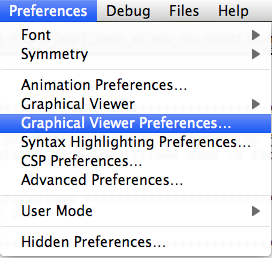
The ProB preferences are grouped into various categories. In the "Preferences" Menu you can modify the preferences for each category:

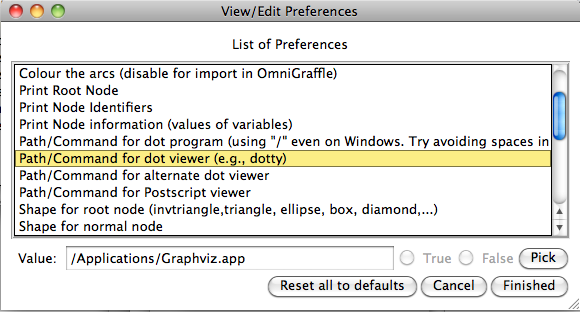
For example, if you choose the graphical viewer preferences you will get this dialog: